Moppy face verification error: what to do
Check camera permission, lighting and your browser, then contact Moppy support if face verification still fails. A practical step-by-step guide with the Japanese error screen explained.
Advertising / referral links may be included.
Taka’s referrals: 835 people
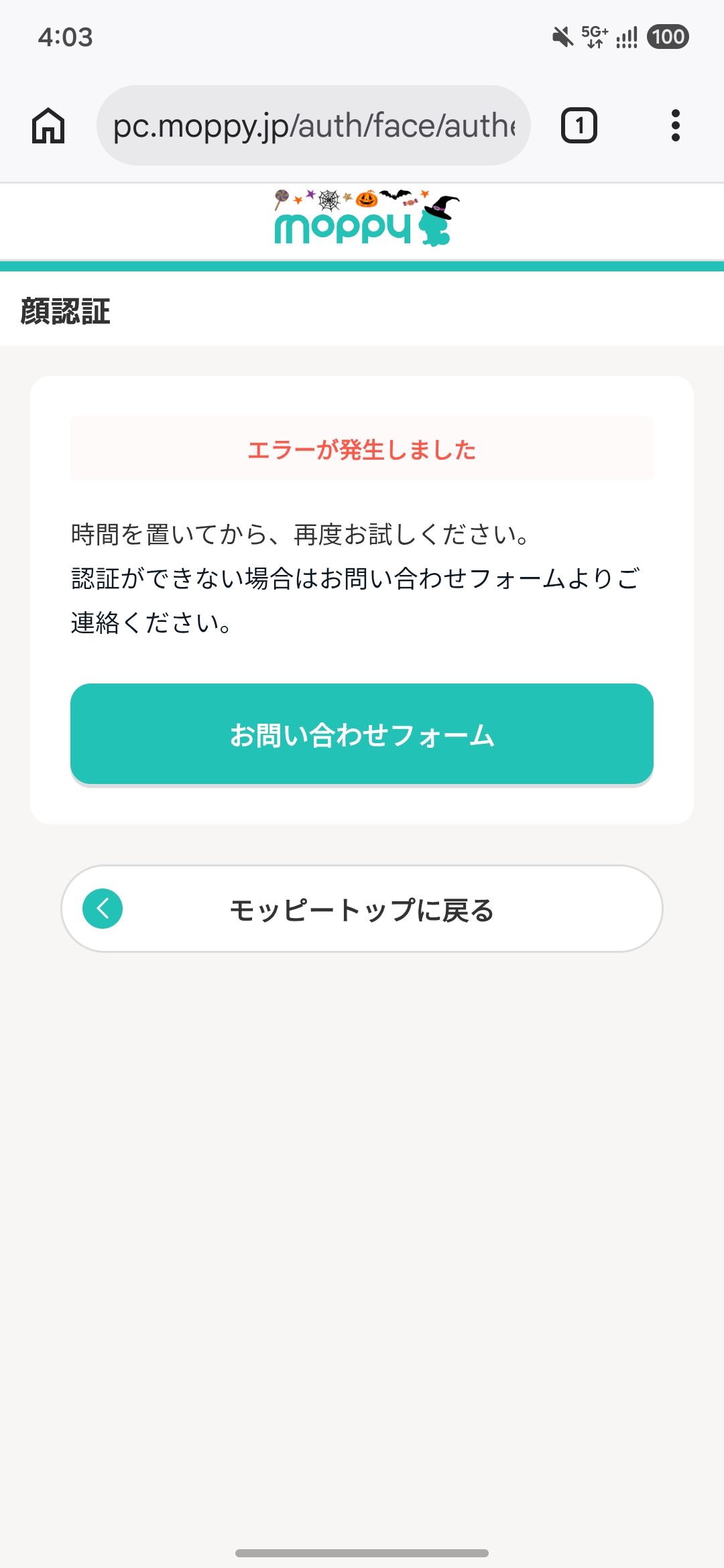
When redeeming Moppy points or completing a verification step, you may see “エラーが発生しました” (An error occurred) and “時間を置いてから、再度お試しください” (Please wait a while and try again).
It is frustrating when you cannot continue, but you can work through the checks in order: camera and lighting → browser → official support. The message alone does not identify the cause.
- Check camera permission and your surroundings, then wait before trying again.
- Restart your browser and, if necessary, clear its cache.
- If the error continues, contact Moppy through the official inquiry form.
To find where you stopped in the process, see the Moppy redemption walkthrough. For the overall authentication flow, read about secret questions, face verification and confirmation emails.
Step 1: Check the camera and your surroundings
Start by making sure your face is clearly visible. Poor lighting, backlighting and items covering your face can interfere with verification.
Before you try again
- Choose a well-lit place. Avoid backlighting and shadows across your face.
- Set screen brightness to maximum. This is one of the checks recommended by Moppy.
- Remove items covering your face. Take off your mask, sunglasses and hat, and keep your eyes clear of your fringe.
- Check reflections on your glasses. Moppy says untinted glasses can stay on. If they reflect light, try adjusting the lighting or your angle.
- Follow the on-screen directions. Move as instructed when the screen asks you to come closer, for example.
Source: Moppy help: errors after the camera starts (Japanese).
Allow camera access
Check both the device settings and the browser’s site settings. Camera access should be allowed / ON. A device with a camera cannot complete this step if access is blocked.
Settings differ by device and operating system. See Moppy’s camera permission instructions (Japanese) if you need help finding the setting.
Once you have checked the settings and lighting, wait a while before trying again, as the error screen requests.
Step 2: Restart the browser and check its cache
If the same error keeps appearing, try the following checks for temporary connection or browser problems. Clearing the cache is a general troubleshooting step; this message does not prove that the cache is the cause.
- Check the connection.
Try somewhere with stable Wi-Fi or mobile reception. - Close and reopen the browser.
Exit the browser itself rather than only closing the tab, then open Moppy again. - Clear cached images and files.
Use the relevant option in browser settings. Cache and browsing history are separate items. Deleting cookies as well may sign you out. - Try another browser in normal mode.
Open Moppy in Safari or Chrome and allow camera access.
Moppy warns that the camera may not start in private/incognito mode or an email app’s built-in browser. If you are following an email link, copy the URL and open it in a normal Safari or Chrome window.
Source: Moppy help: a camera is available but verification does not work (Japanese).
Step 3: Contact Moppy through the official inquiry form
If you still cannot complete verification, select “お問い合わせフォーム” (Inquiry form) on the error screen to contact Moppy’s official support team.
Include the following details to make the situation easier to understand:
- The date and time of the error, and what you were doing immediately beforehand.
- The error message and a screenshot.
- Your device, operating system and browser.
- The checks you have already tried, such as changing the lighting or clearing the cache.
Some cases involve service restrictions or require an individual account check. Avoid repeatedly pressing the verification button. Explain what you have tried and follow support’s instructions.
If you cannot return to the error screen, open the official inquiry page (Japanese) and select “顔認証について” (About face verification).
Official sources and scope
Published and official information checked: 30 October 2026. The screenshot shows the Japanese interface; translated labels are provided above.
- Camera available but verification does not work (Japanese)
- Errors after the camera starts (Japanese)
- Moppy face verification guide (Japanese)
Restarting the browser and clearing its cache are general troubleshooting steps, not a guaranteed fix. If the error continues, follow Moppy support’s guidance.