Taka’s referrals: 41 people
Verdict: Add the extension to Chrome and log in to Hapitas, and setup is done. When a prompt appears on an eligible shop, click “ポイントを貯める” (Earn points) before you buy. Some shops show no prompt, though; if so, search for the advertisement on the official Hapitas site and enter from there.
- Good: it sets up in a few clicks and prompts you to enter through Hapitas on eligible shops.
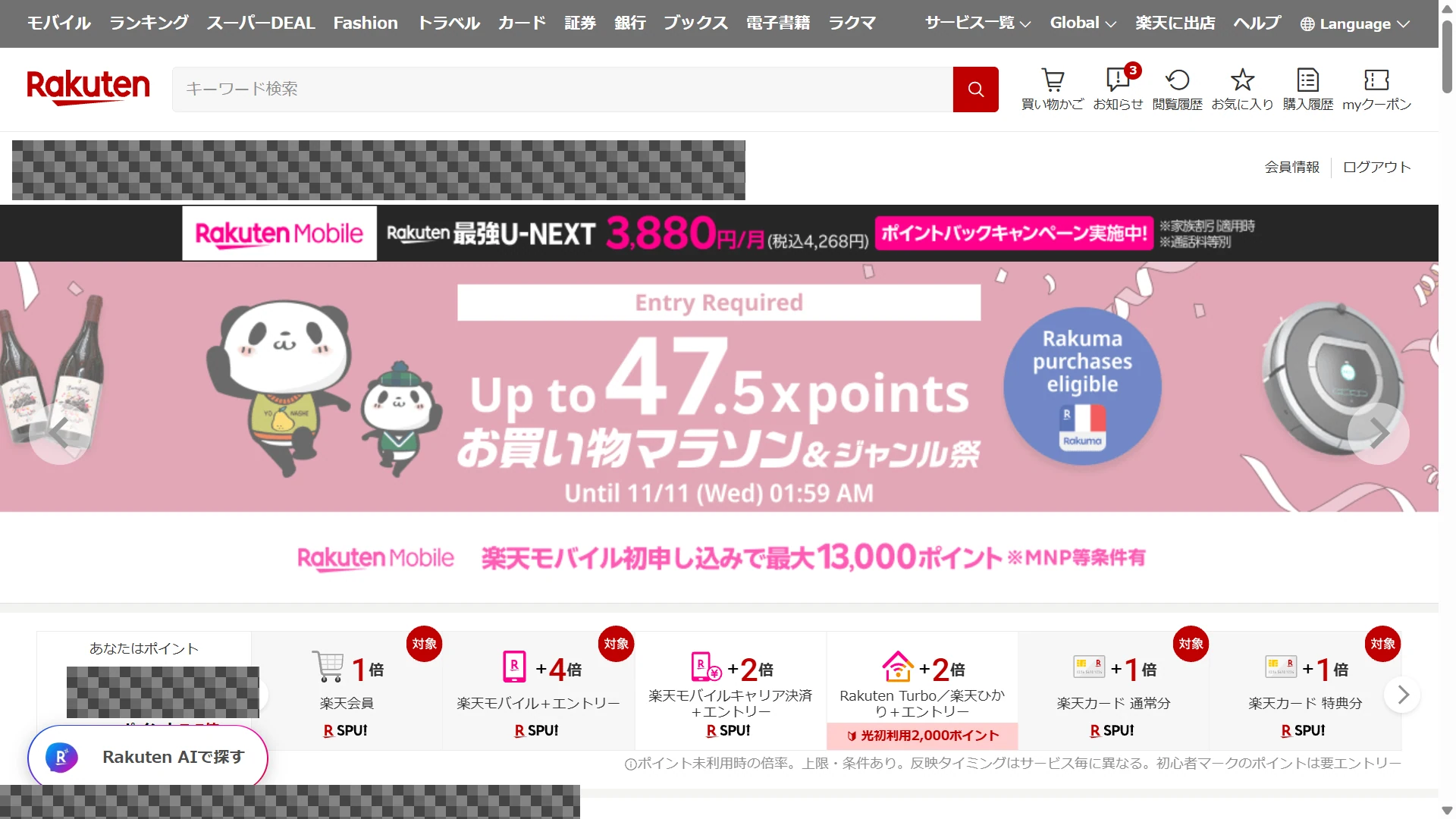
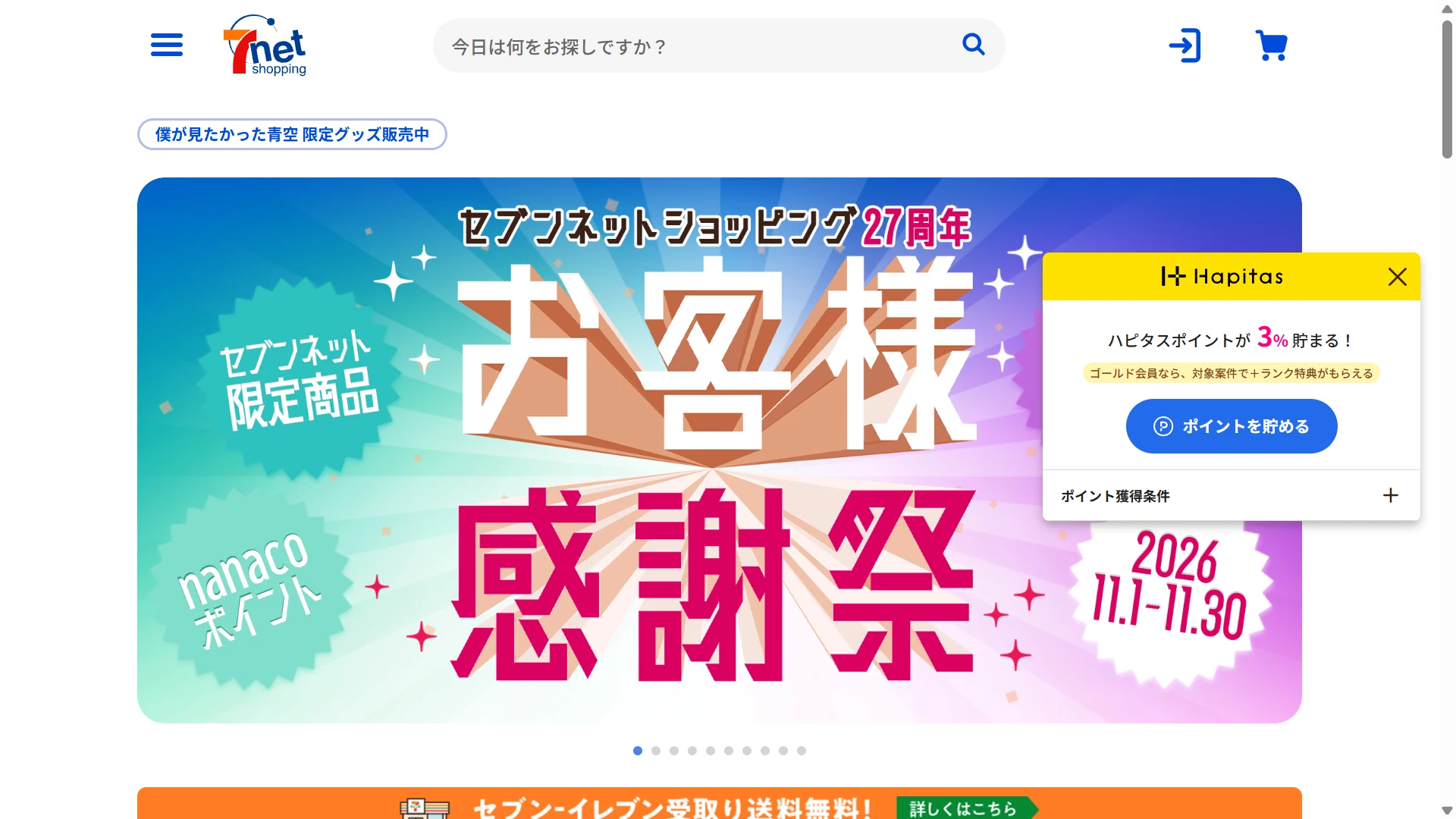
- Watch out: some advertisements are not supported. On my PC the prompt did not appear on Rakuten Ichiba but did on 7net Shopping.
- Suited to: people who tend to forget to enter through Hapitas when shopping.
What is Hapitas Smart?
Hapitas Smart is a browser extension for Safari and Google Chrome. According to Hapitas’s official page, it tells you whether the site you are viewing is eligible for Hapitas points, and points are applied when you tap its button. For the shopping steps, see Shopping through Hapitas.
Where it works
- PC: as a Google Chrome extension (steps in this article).
- Smartphone: Safari on iOS. On search results it appears only with Google search.
Setup in Chrome (steps 1–7)
Open the Chrome Web Store from the Hapitas top page and add the extension. After adding it, log in to Hapitas from the extension to receive prompts.
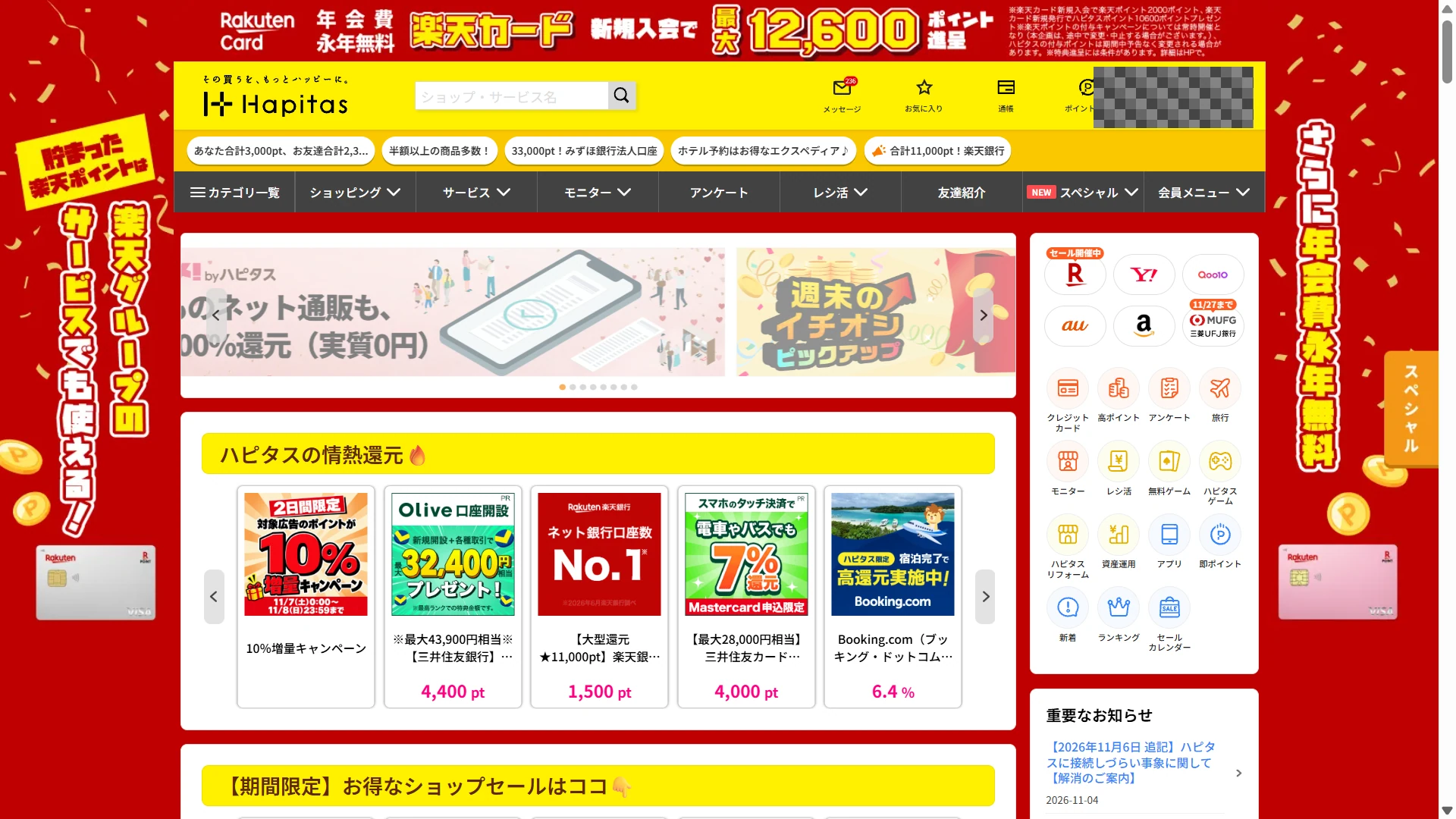
1. Open Hapitas
In Google Chrome on your PC, open the official Hapitas site. Official Hapitas site
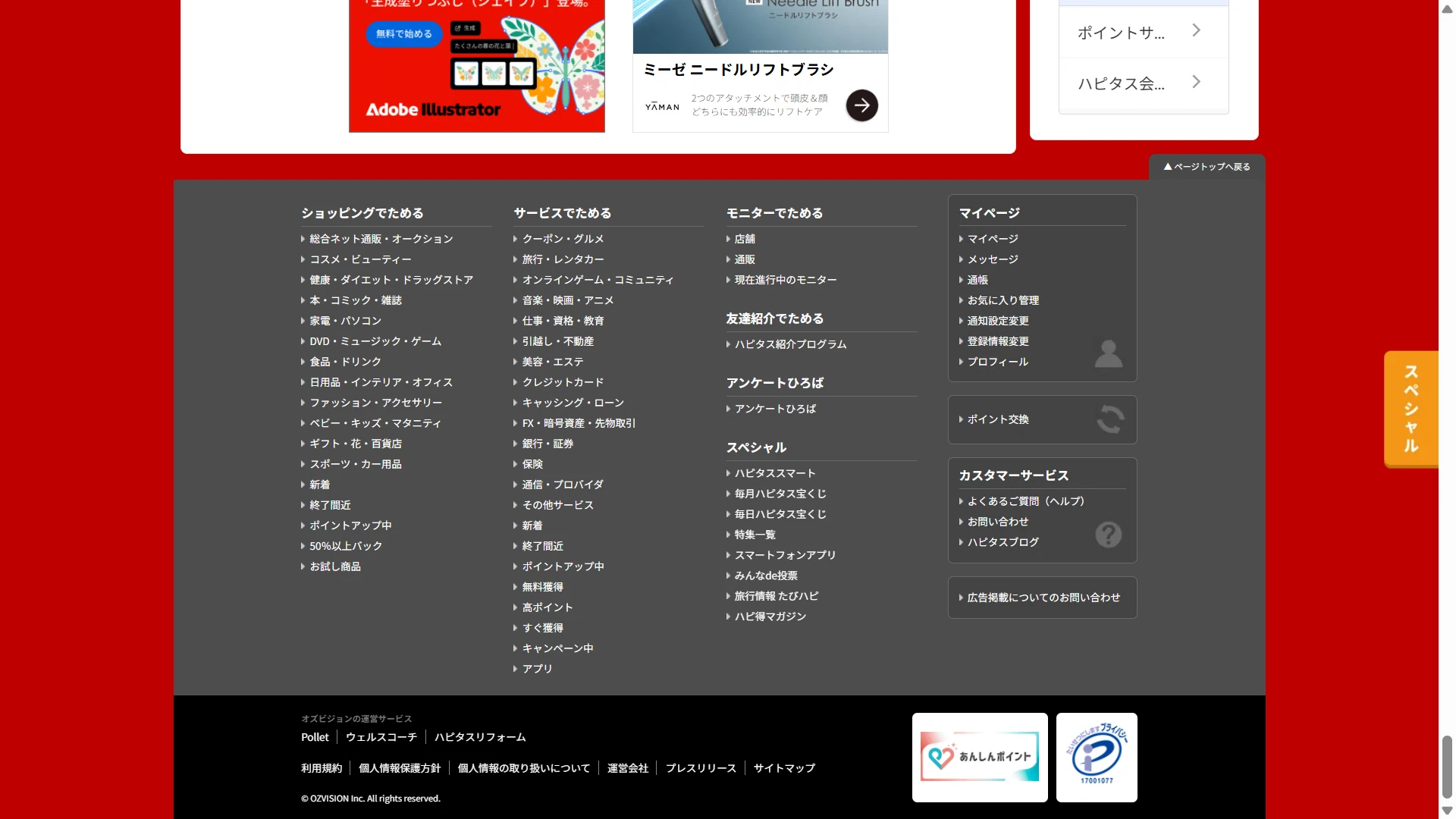
2. Scroll to the bottom and choose “ハピタススマート”
Scroll to the bottom of the top page and click “ハピタススマート” (Hapitas Smart) in the footer.
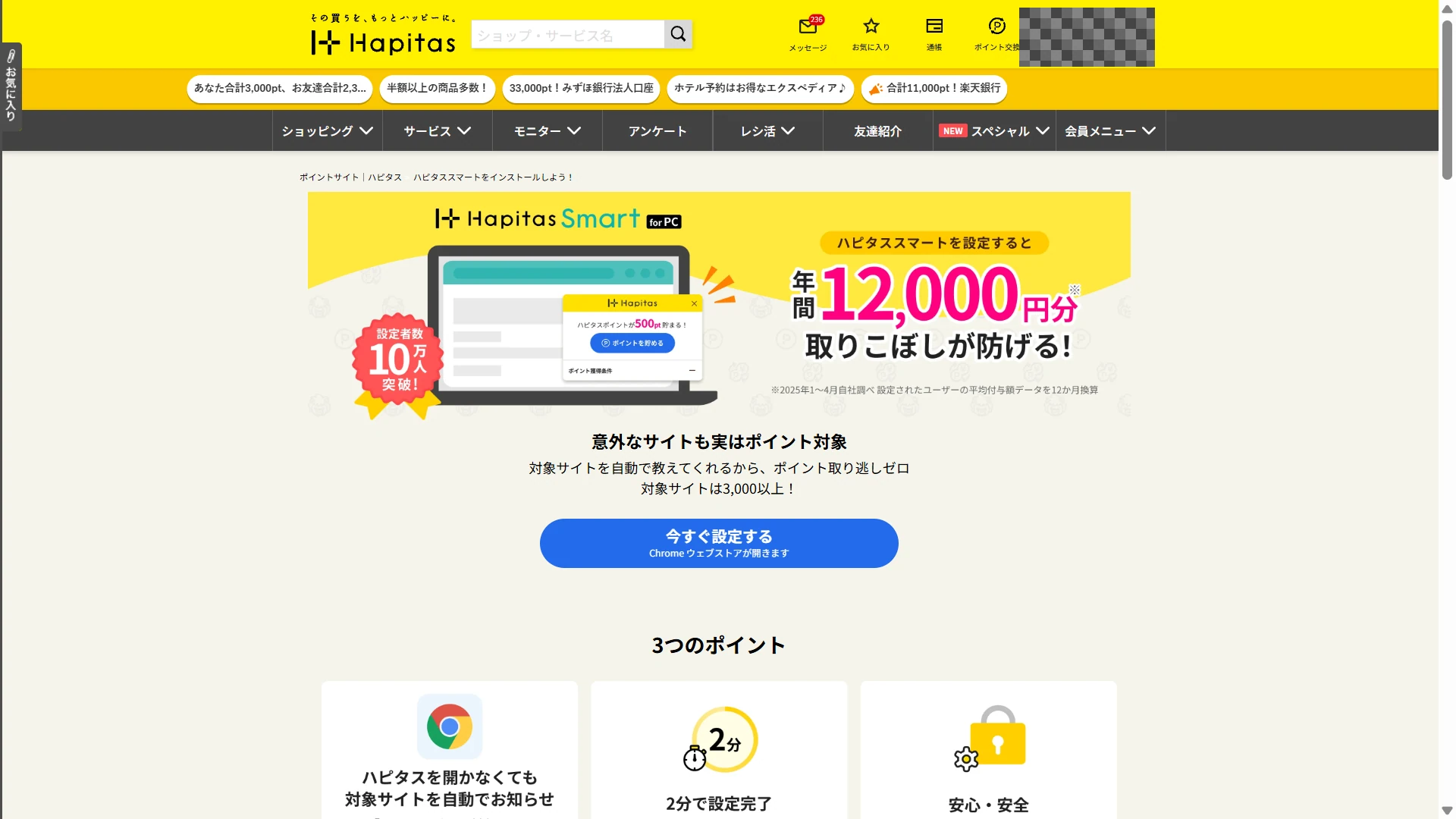
3. Click “今すぐ設定する”
On the Hapitas Smart page, click “今すぐ設定する” (Set up now). The Chrome Web Store opens.
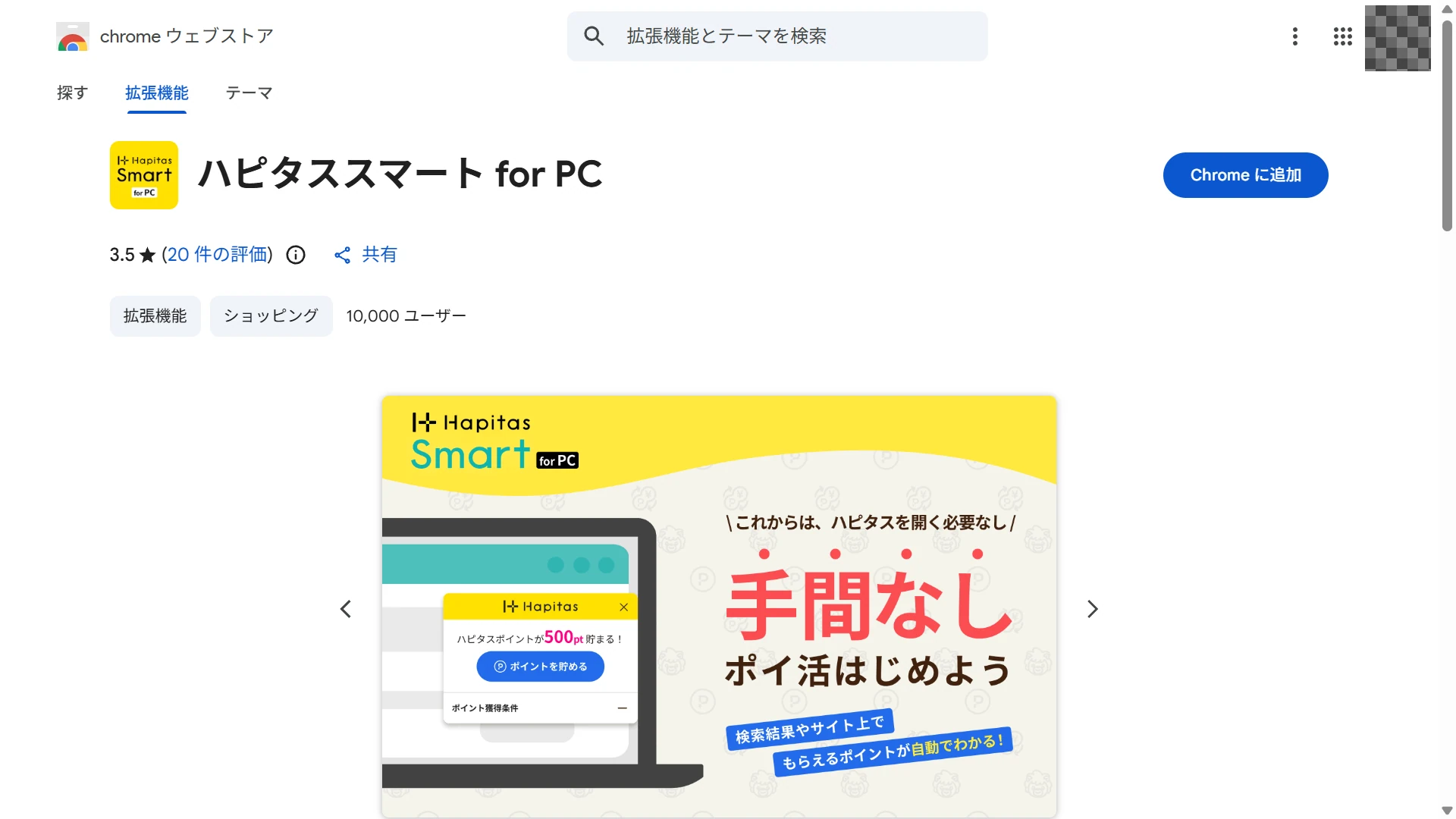
4. Click “Add to Chrome”
In the Chrome Web Store, check that it says “ハピタススマート for PC”, then click “Chromeに追加” (Add to Chrome).
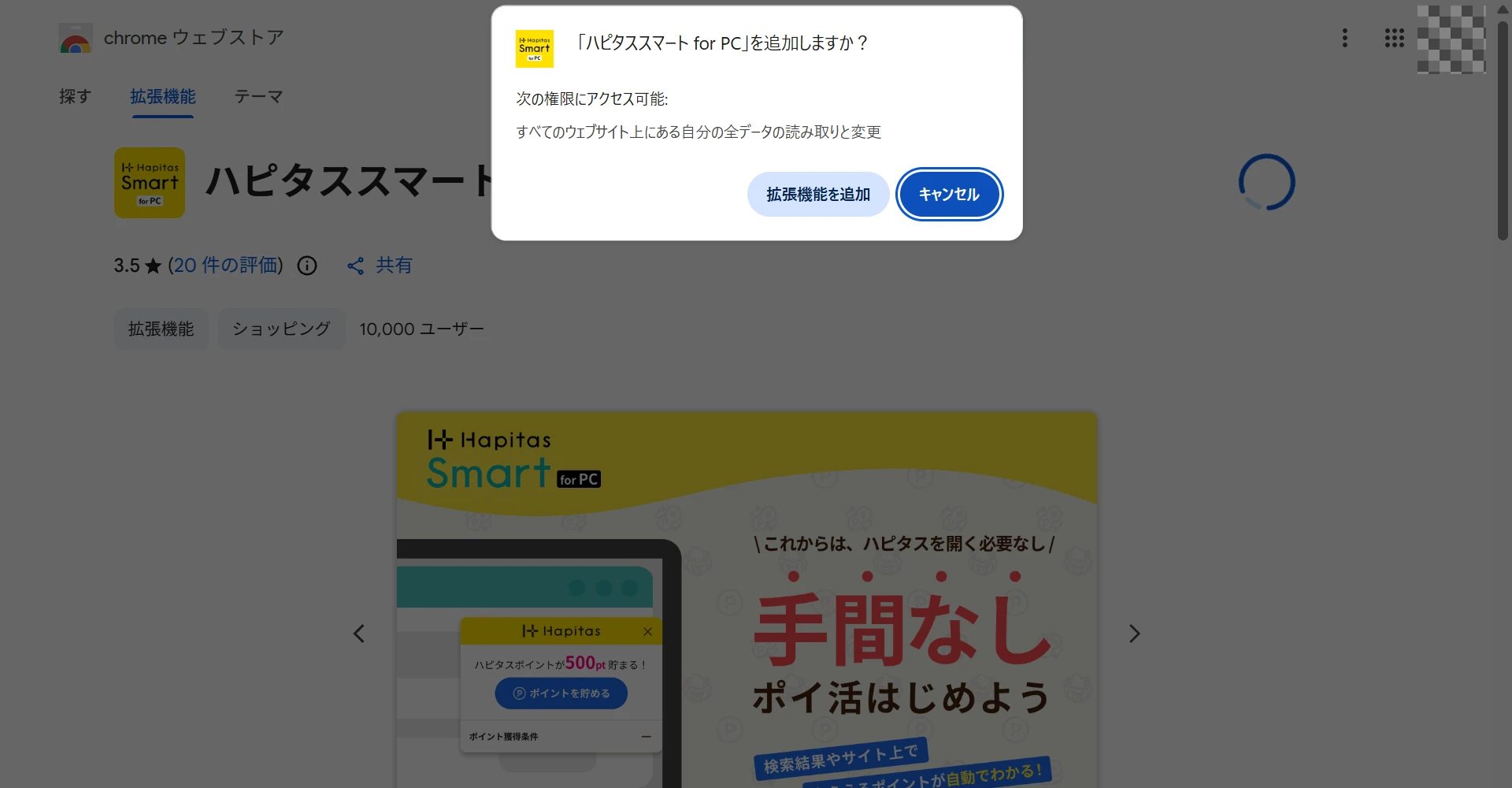
5. Click “Add extension”
Check the permissions shown in the confirmation dialog, then click “拡張機能を追加” (Add extension).
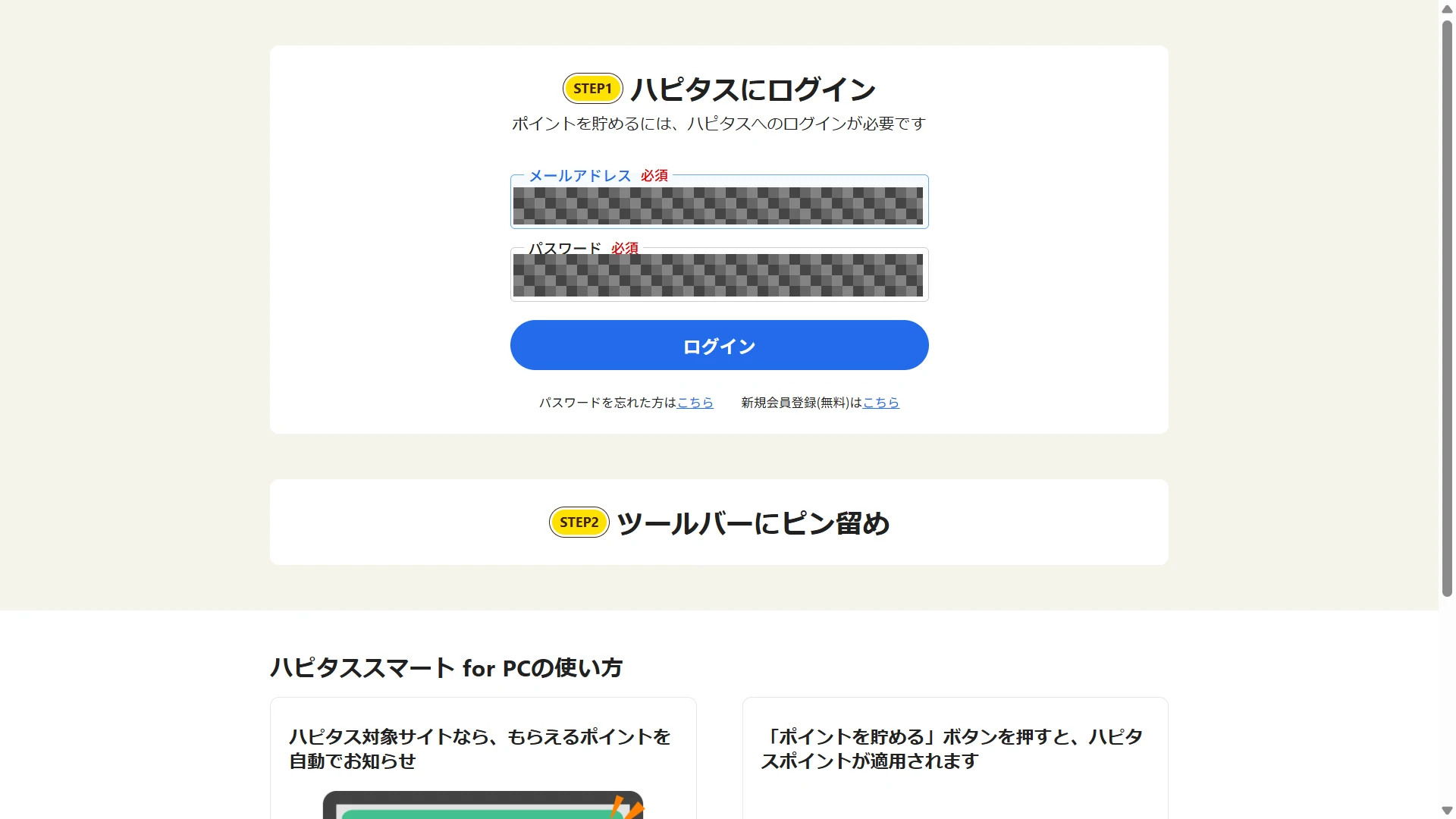
6. Log in with your email address and password
On the extension’s login screen, enter the email address and password you registered with Hapitas and click “ログイン” (Log in).
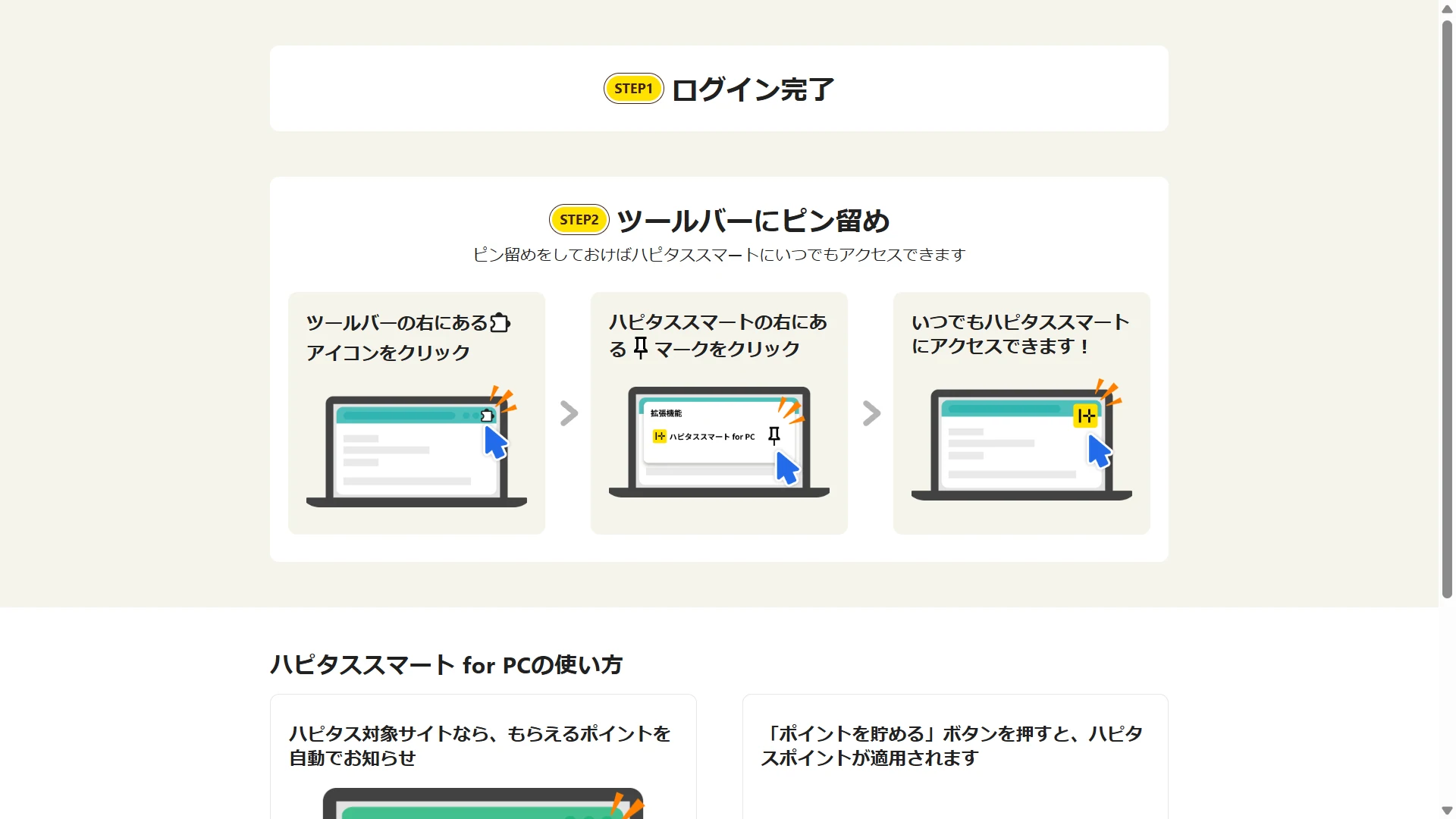
7. Confirm “ログイン完了”
When “ログイン完了” (Login complete) appears, setup is done. If you use it often, you can pin it from Chrome’s extensions menu.
Examples on Rakuten Ichiba and 7net Shopping (steps 8–9)
8. No prompt on Rakuten Ichiba
When I opened Rakuten Ichiba on my PC, no Hapitas Smart prompt appeared. Only some of the advertisements listed on Hapitas are supported by the extension. If no prompt appears, search for the shop name on the official Hapitas site, and if you find the advertisement, check its conditions before entering.
9. A prompt on 7net Shopping
Opening 7net Shopping in the same environment, a Hapitas Smart prompt appeared on the right of the screen. If you use it, click “ポイントを貯める” (Earn points) before buying and check the conditions. The rate shown in the image is what was displayed when I took it.
When it does not appear or points are not applied
Hapitas’s official help suggests checking the following.
The prompt does not appear
- PC: use Google Chrome, make sure the extension is on and that you are logged in to your Hapitas account.
- Smartphone: use Safari, with Google as the search engine.
- If it still does not appear, the shop may be an unsupported advertisement. Not every advertisement listed on Hapitas works with Hapitas Smart.
Points are not applied
- You did not click the “ポイントを貯める” (Earn points) button: seeing it is not enough.
- The advertisement is not supported: if no button appears, search for the advertisement on the official Hapitas site or app and use it directly.
- Browser settings such as cookies or tracking may interfere: check the usage notes in the advertisement’s details.
In what I tried, no prompt appeared on Rakuten Ichiba and one did appear on 7net Shopping. Whether it appears depends on the shop and your environment. If points do not show up, see also Missing Hapitas points.
What the official page says about safety
Hapitas states that it does not collect what you enter or your personal information. It checks the URL of the page you are viewing and your search keywords to decide whether the site is eligible for Hapitas points and whether it can display point information, and says it does not collect page titles, body text or input.
This is the official explanation and has not been verified by Pivox. When you add the extension, check the permissions shown in the confirmation dialog, and enter your login details only on the official extension screen.
Hapitas Smart FAQ
What is Hapitas Smart?
A browser extension for Safari and Google Chrome. According to Hapitas’s official page, it tells you whether the site you are viewing is eligible for Hapitas points, and points are applied when you tap its button.
Does it work outside a PC?
On smartphones it is offered for Safari on iOS, and it appears on search results only with Google search. On PC it is a Google Chrome extension.
What do I need to do to earn points?
When a prompt appears on an eligible shop, click “ポイントを貯める” (Earn points) before you buy. Seeing the button is not enough to apply points.
Does Hapitas Smart appear on Rakuten Ichiba?
It did not on my PC. Hapitas also states that not every advertisement it lists is supported. If no prompt appears, search for the advertisement on the official Hapitas site or app and use it from there.
What should I do if Hapitas Smart does not appear?
On PC, check that you use Google Chrome, the extension is on and you are logged in to Hapitas. If it still does not appear, the shop may be an unsupported advertisement.
Is Hapitas Smart safe?
Hapitas states that it does not collect what you enter or your personal information, and checks the URL of the page and your search keywords only to judge whether the site is eligible. This is the official explanation and has not been verified by Pivox, so check the permissions before you install.
When are points from Hapitas Smart posted?
The same conditions as an ordinary Hapitas advertisement apply. Check the expected posting time and assessment period on the advertisement page.